
How to install the app on your phone
An easy, step-by-step guide so you always have Tapdevi at hand and get an alert every time a new booking comes in.
Installing the app takes less than two minutes. There is nothing to download from any store: it installs straight from your browser. Follow the steps for your type of phone.
Before you start: get your access
To log in to your panel you need a password. The first time, you create it in three steps:
Message us on WhatsApp and ask us to activate your account. We will confirm which email address your winery is registered with.
Check your email: you will receive a message from Tapdevi with a button to create your password. If you cannot see it, check your spam or junk folder.
Tap the button, choose your password and you will be able to log in to the panel from your phone. From here, we install the app.
Which phone do you have?
Install on Android (Samsung, Xiaomi, Google Pixel, etc.)
Open your panel in the Chrome browser (the browser most Androids come with) and follow these steps:
Step 1. Open the Chrome menu
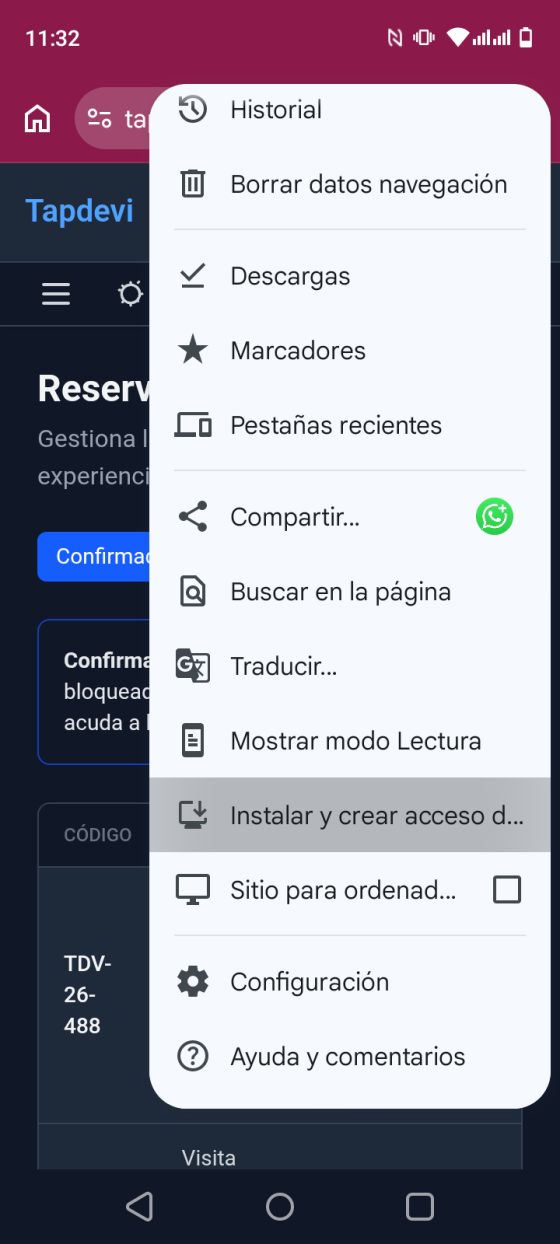
With your Tapdevi panel open, tap the three-dots icon ⋮ at the top right. In the menu that opens, choose "Install app" (or "Add to Home screen").
Step 2. Choose "Install"
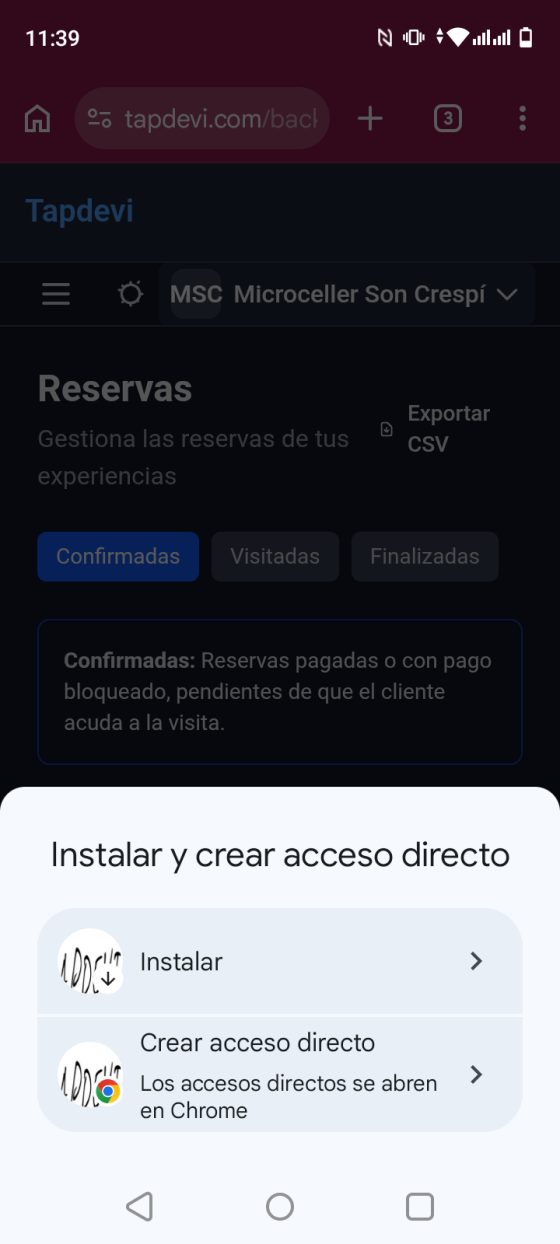
Chrome will ask whether you want to "Install" or "Create shortcut". Always tap "Install": this gives you the real app, with its own window and booking alerts working.
Step 3. Confirm the installation
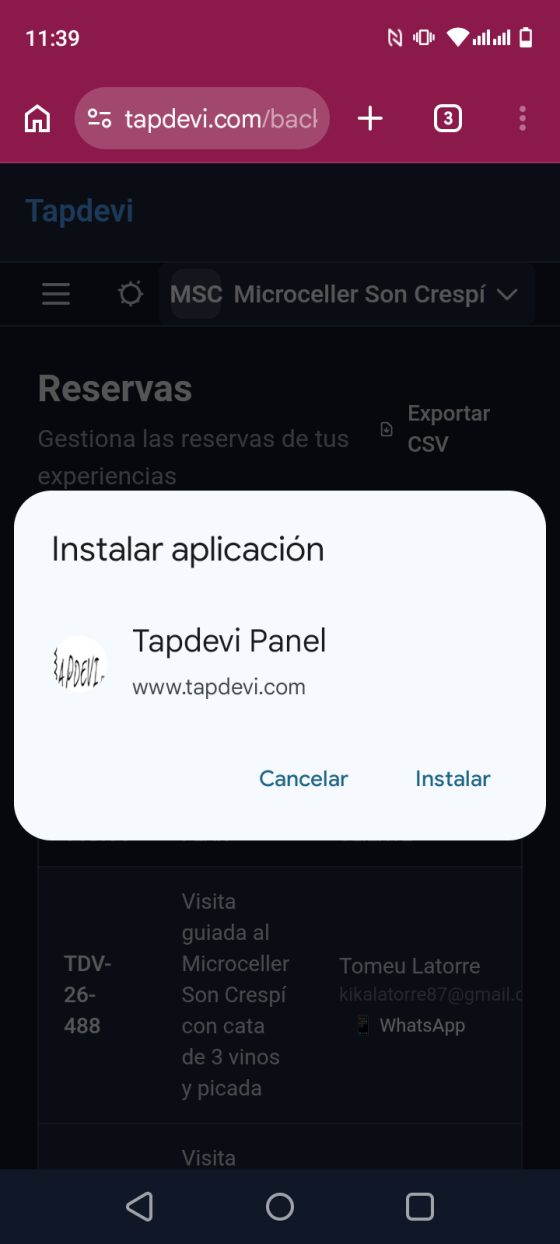
A confirmation window will appear with the name "Tapdevi Panel". Tap "Install" to finish.
Step 4. Move the icon to your screen
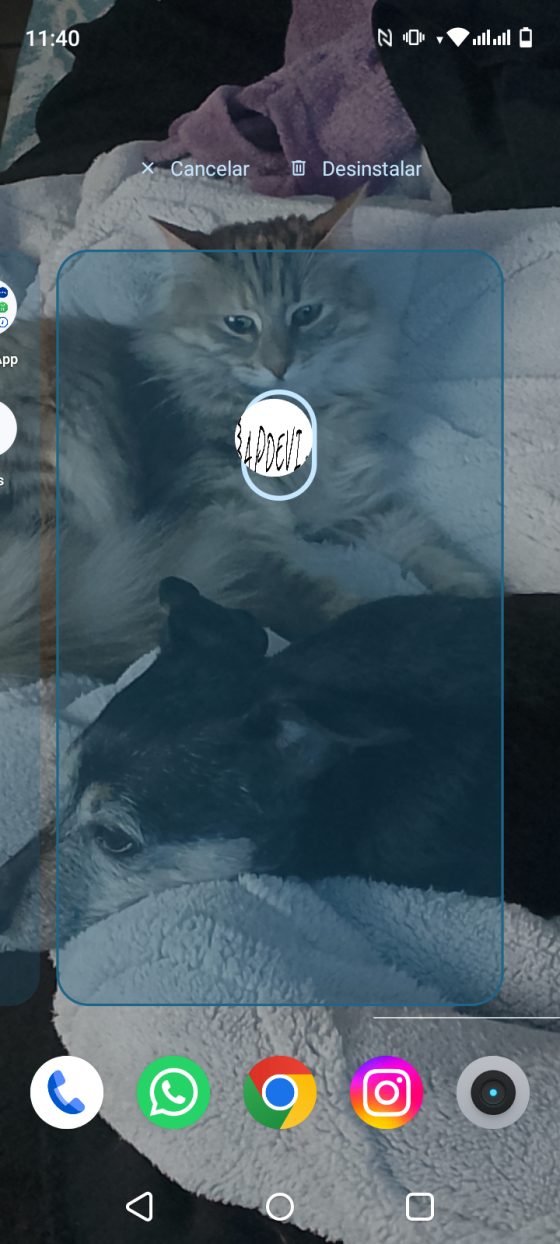
The app is now installed. Find it in your app drawer, press and hold its icon and drag it to your home screen so it is always visible. By the way, let me introduce you to Lluna and Moki, our dog and cat :)
Install on iPhone (Safari)
On iPhone the installation is done from the Safari browser (the blue browser that comes with the iPhone).
Step 1. Open your panel in Safari
Go to your Tapdevi panel using Safari and log in with your email and password.
Step 2. Tap the "Share" button
In the bottom bar of Safari, tap the Share icon: a square with an arrow pointing up. A menu with several options will open.
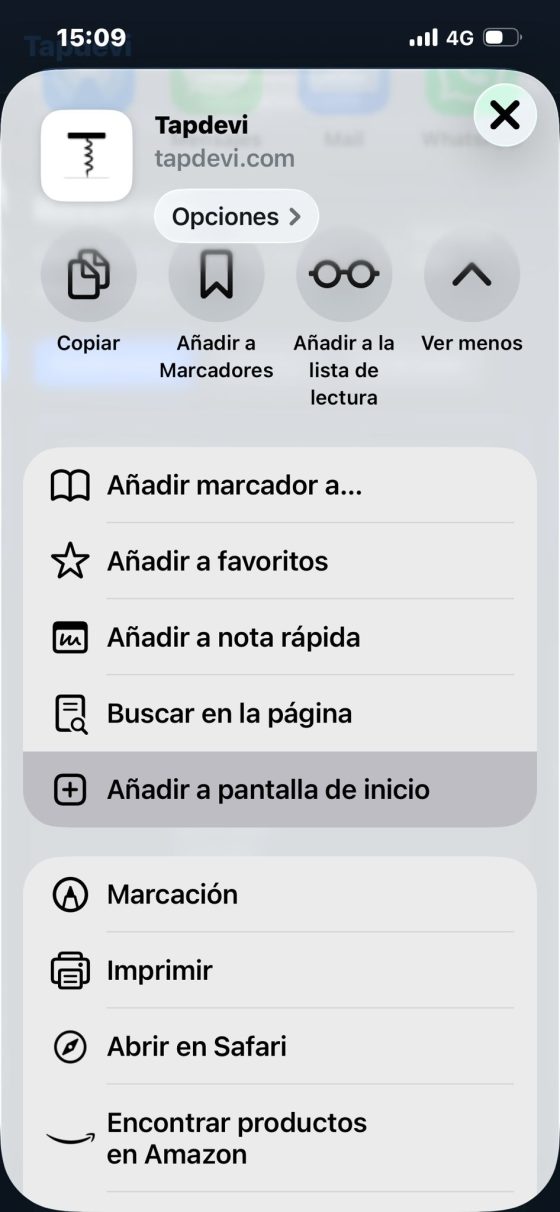
Step 3. "Add to Home Screen"
In that menu, scroll down and tap "Add to Home Screen". Make sure the "Open as web app" switch is turned on (green): this installs it as a real app, with its alerts, and not just as a shortcut.
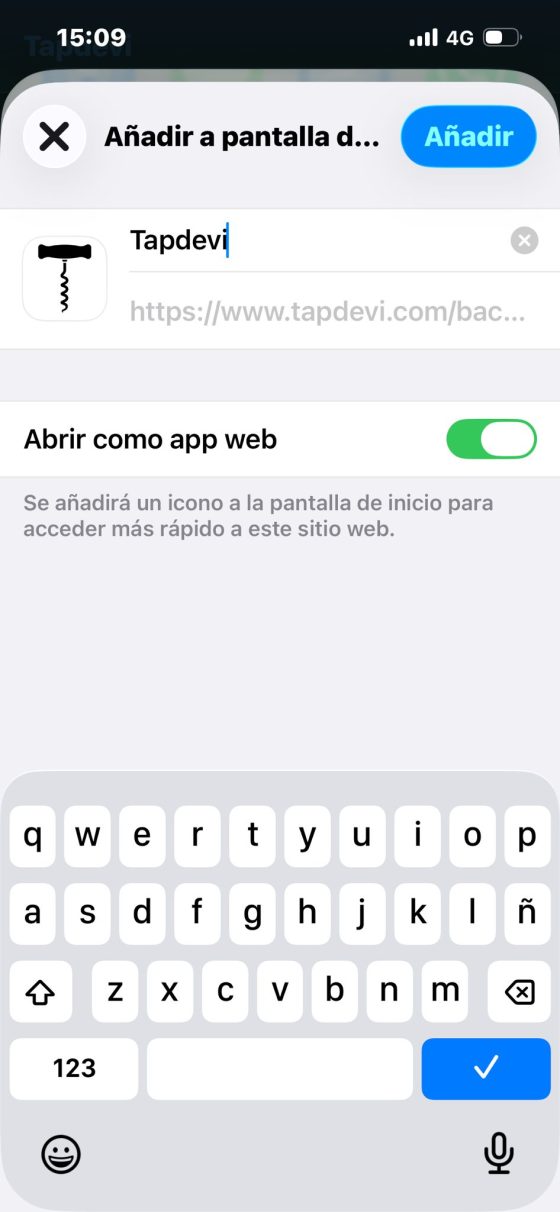
Step 4. Confirm and you are done
At the top right, tap "Add". The Tapdevi icon will appear on your home screen like any other app, ready to use.
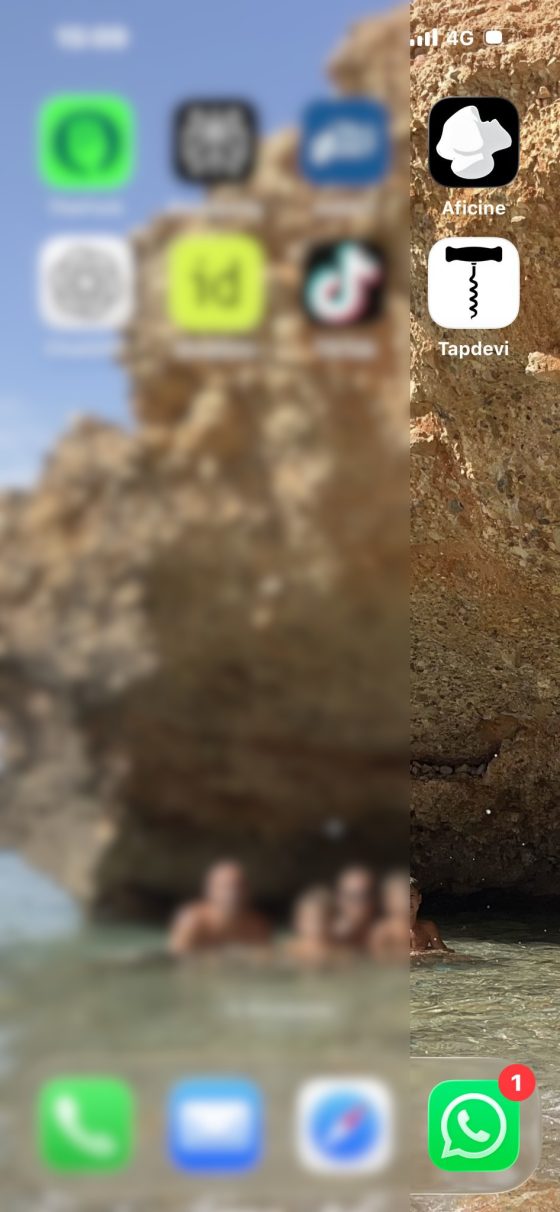
Last step: turn on booking alerts
This is the most important part for your winery: with alerts on, your phone will ring every time a new booking comes in, without you having to keep checking.
Open the app you have just installed (the Tapdevi icon on your screen).
Log in to your panel and look for the prompt to turn on notifications. When your phone asks whether to allow notifications, tap "Allow".
Done! From now on you will get an alert on your phone for every booking, and you will be able to manage your calendar and scan your customers' vouchers from the app itself.
Got stuck?
Do not worry, we are here to help. Message us on WhatsApp and we will install it together.
Message us on WhatsApp